



Connect your Eldom devices to Home Assistant and operate them via Eldom's Cloud APIs with pyeldom.

Currently, there's primarely support for devices that are managed by the My Eldom app (or the myeldom.com website).
Devices that are managed via the Eldom app (or the iot.myeldom.com website) are in experimental support from release 5.0.1. Some of the devices under experimentation are flat boilers and convector heaters.
This integration allows you to control Eldom devices via Home Assistant.
Note that there's only one way to control your Eldom devices - via their Cloud APIs. There's no support for local network control.
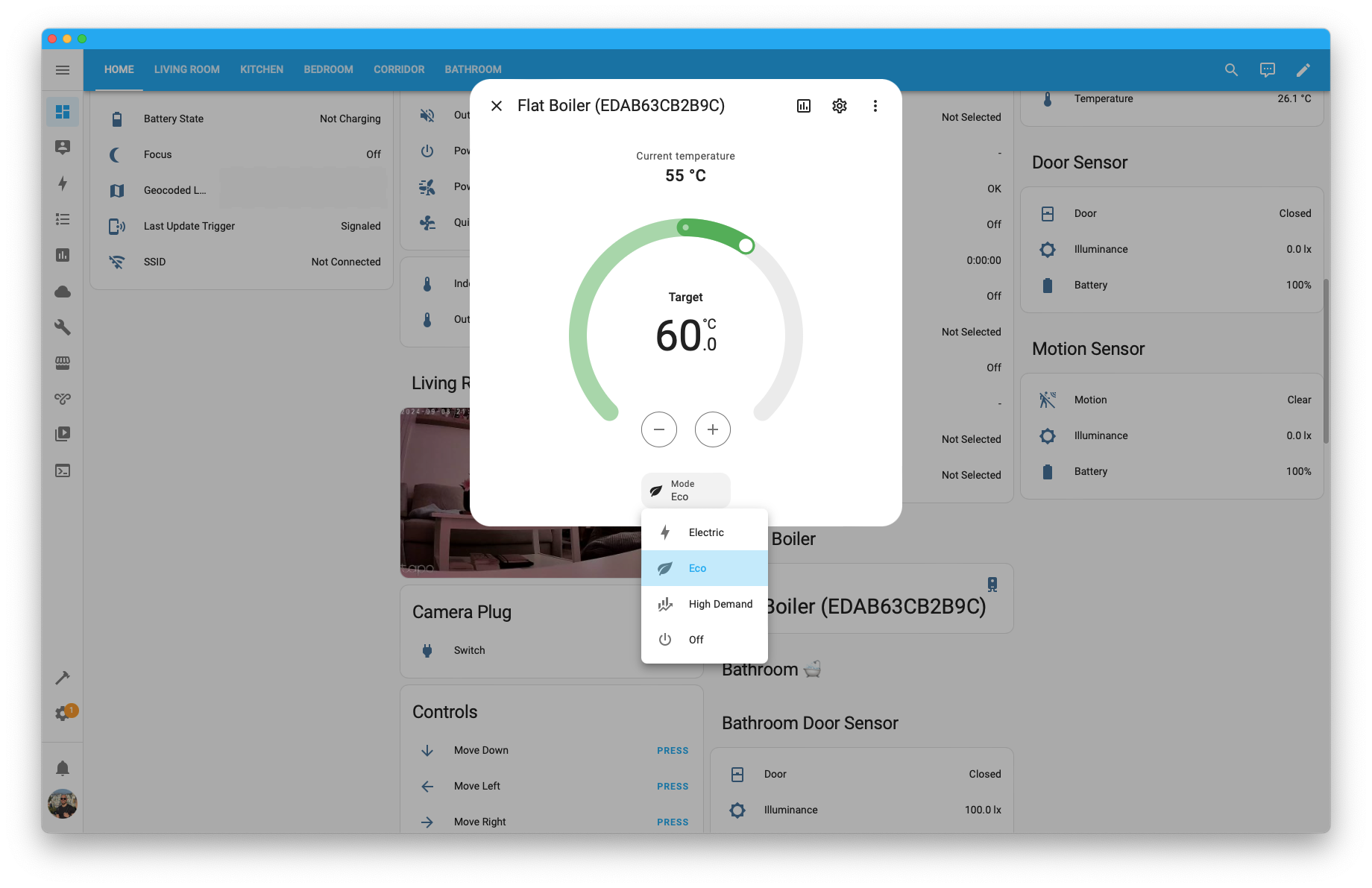
- Operational mode selection
Electric(corresponds to "Heating")Eco(corresponds to "Smart")High Demand(corresponds to "Study")Off
- Set target temperature
- Display current temperature (the average of both chambers)
- Enable
Powerful modeswitch (only works whileEcomode is enabled) - Display sensors
- Heater is currently on/off
- Day energy consumption
- Night energy consumption
- Saved energy
- Energy usage reset date
- Chamber 1 temperature
- Chamber 2 temperature
Reset Energy Usagebutton
- Operational mode selection
Electric(corresponds to "Heating")Eco(corresponds to "Smart")High Demand(corresponds to "Study")Off
- Set target temperature
- Display current temperature
- Enable
Powerful modeswitch (only works whileEcomode is enabled) - Display sensors
- Heater is currently on/off
- Day energy consumption
- Night energy consumption
- Saved energy
- Energy usage reset date
Reset Energy Usagebutton
- Operational mode selection
Electric(corresponds to "On")Eco(corresponds to "Holiday")Off
- Set target temperature
- Display current temperature
- Enable
Powerful modeswitch (only works while the boiler is not off) - Display sensors
- Heater is currently on/off
- Day energy consumption
- Night energy consumption
- Energy usage reset date
- Solar collector temperature
- Boiler intake temperature
- Tank temperature (top, middle, and bottom zones)
- Electric heater activation temperature
Reset Energy Usagebutton
- Operational mode selection
HeatOff
- Set target temperature
- Display current temperature
Devices managed via the Eldom app (or the iot.myeldom.com website) — see the experimental support note above.
- Operational mode selection
Electric(corresponds to "Extra safe")Eco(corresponds to "Eco")High Demand(corresponds to "Smart")Performance(corresponds to "Powerful")Off
- Display current temperature (no target temperature control yet)
- Display sensors
- Heater is currently on/off
- Chamber 1 temperature
- Chamber 2 temperature
Devices managed via the Eldom app (or the iot.myeldom.com website) — see the experimental support note above.
-
Operational mode selection
HeatOffAutoto activate a saved weekly programme (supported IoT convectors)
-
Set target temperature
-
Display current temperature
-
Estimated electricity today (kWh), explicitly labelled as an Eldom estimate
-
Available hourly electricity and temperature histories, up to seven days
-
Read-only power regulation status and the reference power used for estimates
-
Separate background telemetry polling and isolated cloud reconnection
-
Read-only weekly schedule, protection, display, language and diagnostic entities
-
Combined hourly graphs with serialized cursor traversal and explicit coverage
See IoT convector configuration readings for the 18 new entities, diagnostics disabled by default and read-only limitations.
Seven additional configuration controls cover child lock, antifreeze, sleep, power regulation, display dimming, brightness and window detection. Writes require an independent readback and are never automatically retried. Sleep requires Manual mode; saved programmes are retained.
Weekly programmes can be activated, paused and edited using native HA actions. See weekly programme control for interval editing, remembered activation flags and supported device configuration.
The hourly values reproduce the official app's calculation; they are not an independent electricity-meter measurement or instantaneous watts. Missing data remains unavailable. See IoT convector telemetry for the attribute schema, polling behaviour, limitations and offline tests.


- Install HACS if it's not already installed. Look at this video.
- Open HACS.
- Select
Integrations, then select the 3-dots in the upper-right corner, then selectCustom Repositories. - Put the reposity URL in the
Repositoryfield, then selectIntegrationin theCategorydropdown list and clickAdd. - Now, you can search for
Eldomin HACS and install the integration. - After the installation, you need to restart Home Assistant.
- Now, you can proceed with Usage.
I've made a video tutorial on YouTube on how to do all this:
- Download or clone the integration to your local machine.
- Navigate to the
custom_componentsdirectory in your Home Assistant installation directory. - Copy the folder
custom_components/eldomfrom the downloaded integration to the Home Assistantcustom_componentsdirectory. - Restart Home Assistant.
- After installation, go to
Settings > Devices & services > Add integrationand search forEldom. - Provide an Eldom account
emailandpasswordand clickSubmit.
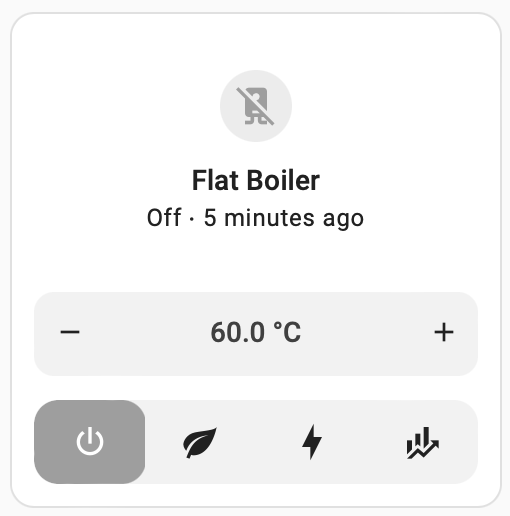
If you find the default card boring, you can try out this custom one.
YAML
features:
  - type: target-temperature
  - type: water-heater-operation-modes
    operation_modes:
      - "off"
      - eco
      - electric
      - high_demand
type: tile
entity: water_heater.flat_boiler_edab63cb2b9c
color: primary
name: Flat Boiler
hide_state: false
show_entity_picture: false
vertical: true
state_content:
  - state
- last-changedFor additional questions, you can head over to our Discord channel.